In this guide, you’ll learn how to download Aadhaar card using Enrolment ID (EID) directly from the UIDAI portal. You can easily download your Aadhaar card online using your Enrollment ID (EID) provided on the acknowledgment slip. The Enrollment ID is a unique 28-digit number generated when you apply for Aadhaar at an enrollment centre. It contains both the enrollment number and the date-time stamp of registration. This guide explains the complete process of downloading Aadhaar using your EID in simple steps, along with important details and common questions users often have. Many users also search for “Aadhar card download”, but both Aadhaar and Aadhar refer to the same unique ID service managed by UIDAI.
Table of Contents
ToggleStep-by-Step Guide to Download Aadhaar Using EID
The process of downloading your Aadhaar using the Enrollment ID is simple and can be completed online within minutes. Follow these steps carefully:
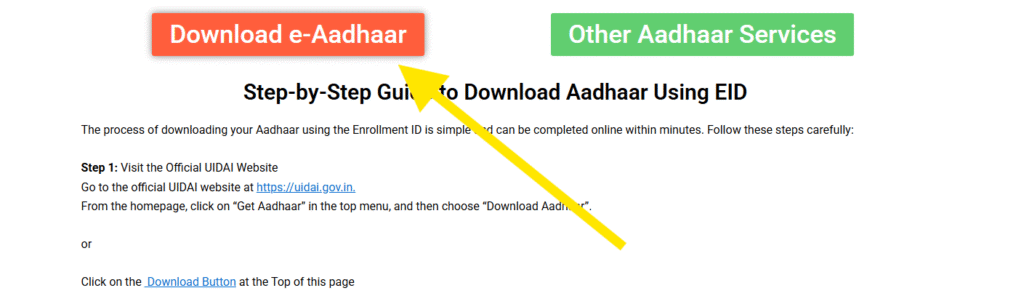
Step 1: Visit the Official UIDAI Website
Go to the official UIDAI website at https://uidai.gov.in.
From the homepage, click on “Get Aadhaar” in the top menu, and then choose “Download Aadhaar”.
or
Click on the Download Button at the Top of this page

Or
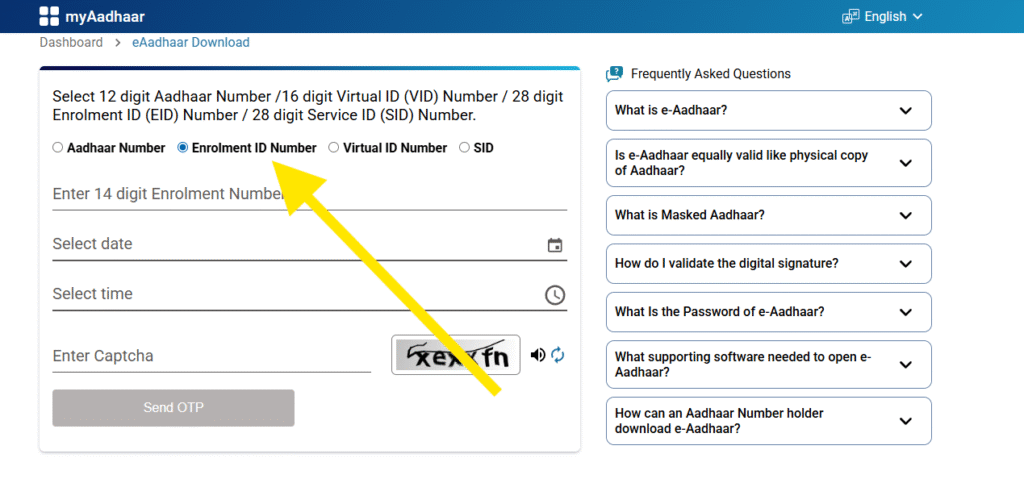
Step 2: Select the Enrollment ID (EID) Option
On the download page, you will see multiple options such as:
Aadhaar Number (UID)
Enrollment ID (EID)
Virtual ID (VID)
Select Enrollment ID (EID) to continue.
Step 3: Enter Your Enrollment Details
Type your 28-digit EID as shown on your acknowledgment slip.
Next, enter the Security Captcha Code displayed on the screen.
Step 4: Request OTP Verification
Click “Send OTP.” The One-Time Password will be sent to your registered mobile number and/or email address.
If your mobile number is not linked, you may use Face Authentication (if available) to verify your identity.
Step 5: Enter OTP or Complete Face Verification
Type the OTP in the verification field, or complete the face authentication process as instructed on the screen. Once verified, the download link will appear.
Step 6: Download Your e-Aadhaar
Click the “Download Aadhaar” button. The PDF of your Aadhaar card will be downloaded immediately.
The file is password-protected. To open it, enter your password in the format:
First four letters of your name in CAPITAL + Year of Birth
Your e-Aadhaar is now ready to use. You can print it or keep it stored digitally on your phone or computer for identification purposes.
Understanding Enrollment ID (EID) and Its Importance
When you apply for a new Aadhaar or request an update (such as name, address, or date of birth), you receive an Acknowledgment Slip from the enrollment centre. This slip contains your Enrollment ID (EID) — a unique identification number for your application.
The Enrollment ID appears in this format:
1234/56789/01234 followed by the date and time of enrollment, such as 25/03/2025 10:15:22.
Both together form your full EID — for example, 1234/56789/01234 25/03/2025 10:15:22.
This ID is essential because it allows you to:
Check your Aadhaar status online.
Download your Aadhaar card (e-Aadhaar) even if the number is not yet printed or delivered.
Track any updates or corrections made during the process.
If you haven’t yet received your Aadhaar number but need proof of enrollment, using the EID is the easiest way to download your e-Aadhaar — a digitally signed electronic version of your Aadhaar card. This version is valid across all institutions and can be used as official identity proof.
Many people lose their registered mobile number or do not receive OTPs. In such cases, downloading Aadhaar using the Enrollment ID ensures you still have access to your details quickly. It is a secure and convenient alternative before the Aadhaar card physically reaches your address.
Whether you type Aadhar card download by enrolment ID or Aadhaar download using EID, the process remains exactly the same on the official UIDAI portal.
Key Points and Troubleshooting
Important Tips While Downloading Aadhaar Using EID
- Use only the official UIDAI website to avoid fake portals.
- Check that the EID and date-time are entered exactly as printed on your slip.
- Make sure your internet connection and browser (Chrome, Edge, Firefox) are updated.
- If OTP is not received, check your mobile network or registered email.
- Avoid repeated download attempts within short intervals to prevent temporary blocking.
Common Problems and Their Solutions
Problem: OTP not received.
Solution: Try “Resend OTP” or use face authentication if available.
Problem: Invalid EID error.
Solution: Check that both enrollment number and timestamp are entered correctly.
Problem: File not opening after download.
Solution: Enter password in correct format (first four letters of your name + year of birth).
Problem: Photo or details mismatch.
Solution: Raise a correction request at your nearest Aadhaar Seva Kendra or online via UIDAI portal.
FAQs
Q1. Can I download Aadhaar before receiving it by post?
Yes. You can download your e-Aadhaar using your Enrollment ID even before the physical card arrives.
Q2. What if I lost my Enrollment Slip?
You can retrieve your EID by visiting the UIDAI website and using the “Retrieve Lost EID/UID” service.
Q3. Is the downloaded e-Aadhaar valid everywhere?
Yes. The downloaded version is digitally signed by UIDAI and legally valid as a physical Aadhaar card.
Q4. What if my mobile number is not registered with Aadhaar?
You can visit the nearest Aadhaar Seva Kendra to link your mobile number or use face authentication if available.
Q5. Can NRIs use EID to download Aadhaar?
Yes. NRIs who have completed Aadhaar enrollment can download their e-Aadhaar using EID from any country.
Q6. Do I need to pay to download Aadhaar online?
No. Downloading your Aadhaar using EID is completely free through the UIDAI official portal.
Download Aadhaar Online:
How to Download Aadhaar (e-Aadhaar)
How to Download Aadhaar Card Without Mobile Number
How to Download Aadhaar Card Without Mobile Number (Easy Step-by-Step 2025 Guide)
Visit Official UIDAI Website:
https://uidai.gov.in/